

Installation
1
Download plugin
Download the file:
Thunderbird Plugin v1.2.0
Download plugin
2
Open the Add-ons Manager
In Thunderbird, open the hamburger menu and select Add-ons and Themes (or Tools → Add-ons and Themes)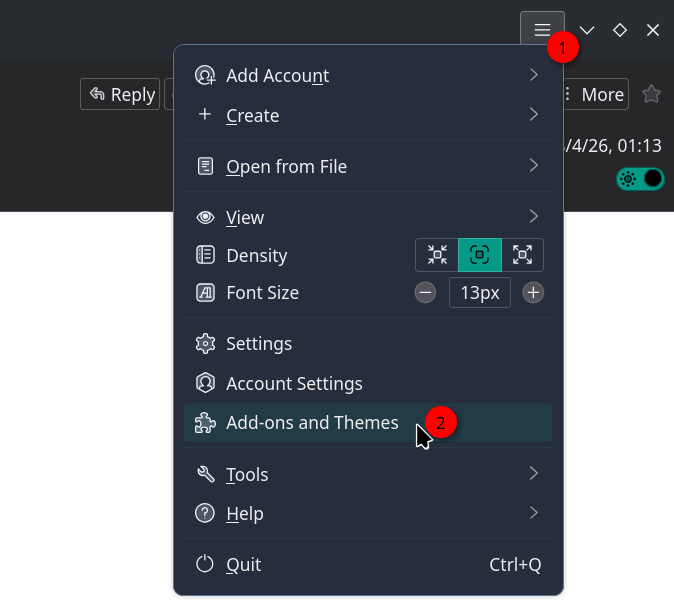
3
Install from file
Click the gear icon next to the search box and select Install Add-on From File…, then choose the downloaded 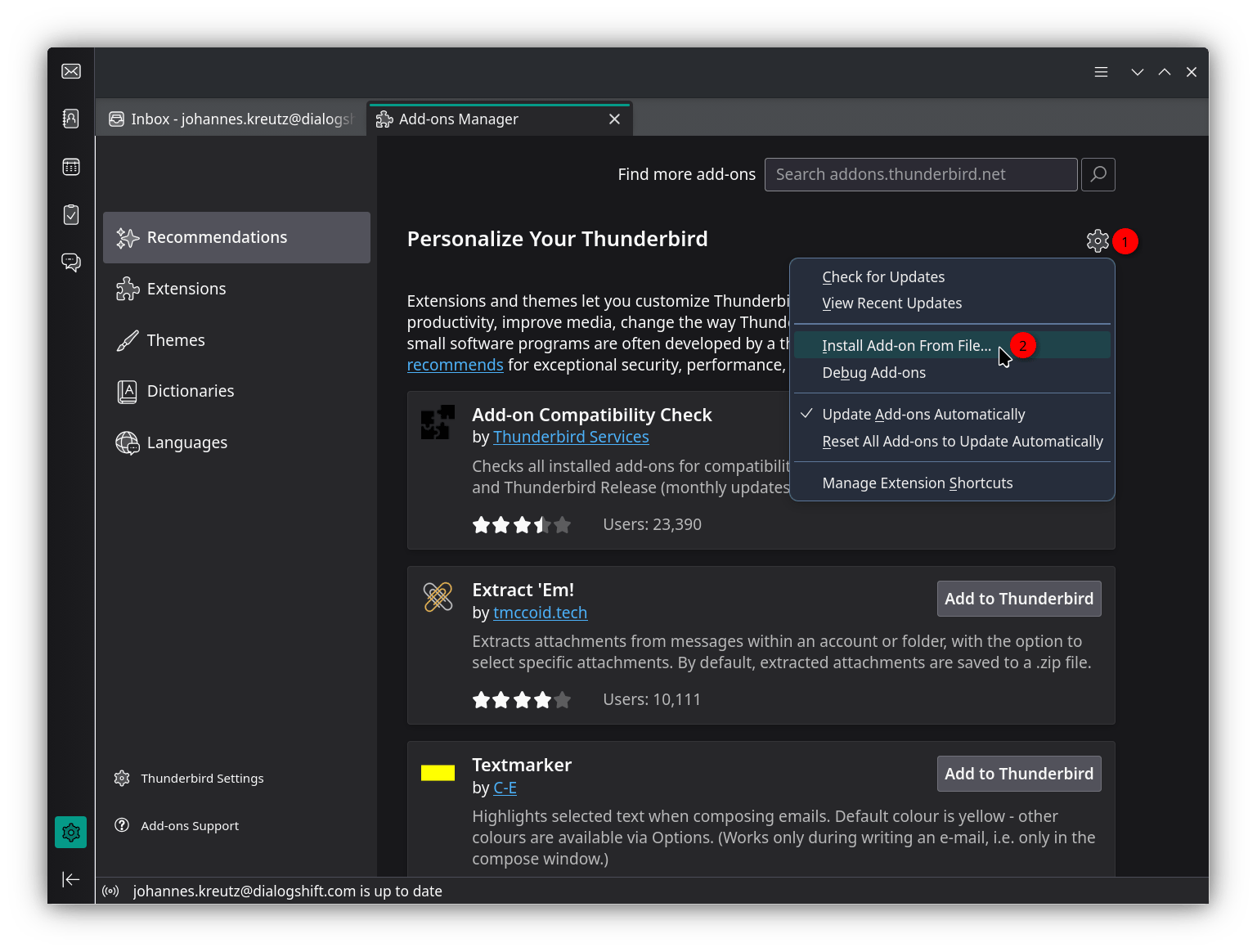
.xpi fileAlternatively, drag the .xpi file directly onto the open Add-ons Manager tab.4
Confirm permissions
Thunderbird shows the permissions the plugin requests — access to the dialogshift.com domain, reading and modifying email messages as you compose and send them, and access to browser tabs. Click Add to confirm.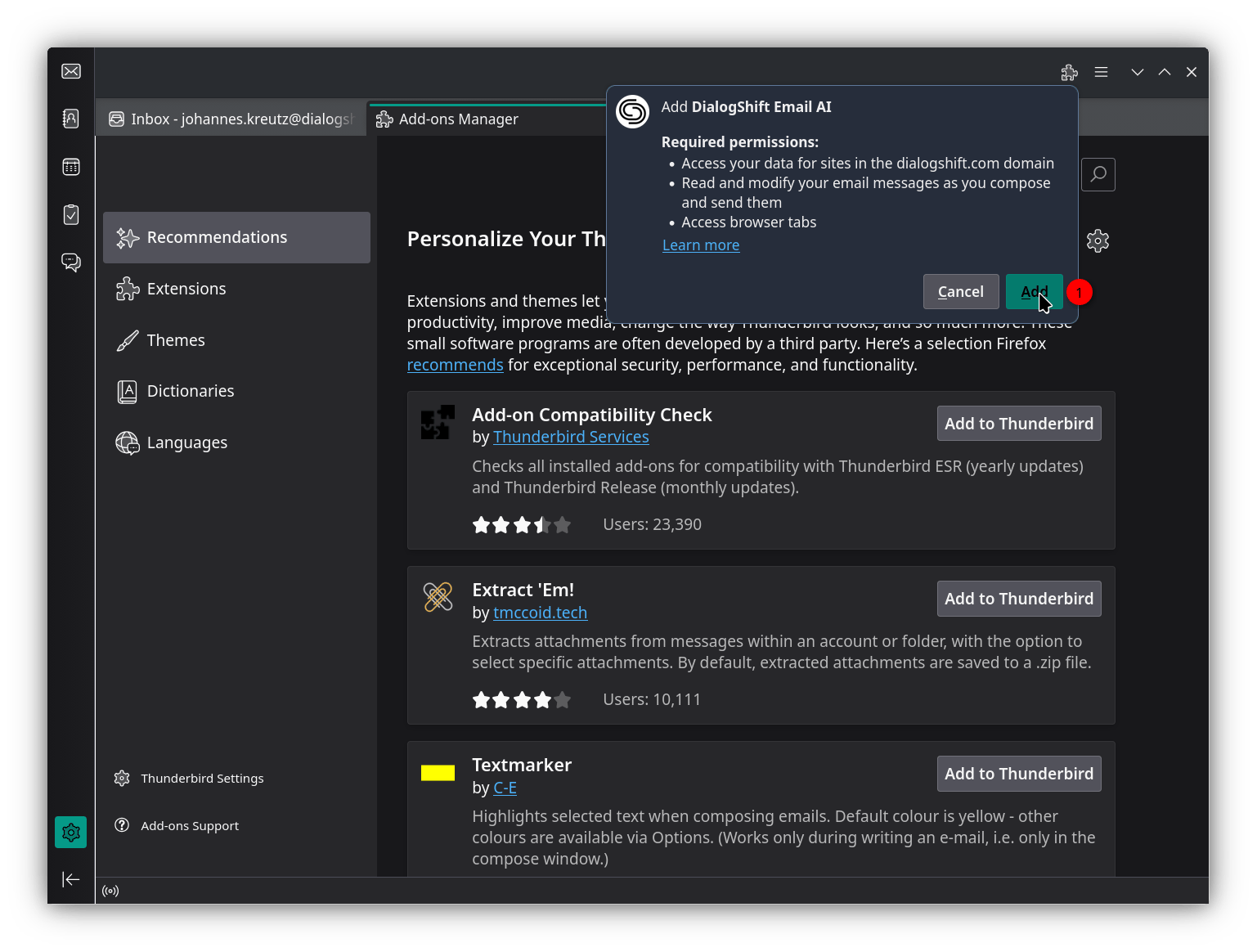
Usage
1. Sign in
Authenticate with DialogShift login
2. Reply to email
Click reply on the guest email you want to answer
3. Generate response
Create and customize AI response
4. Insert reply
Insert the generated response into your reply
The plugin enables direct use of Email AI functions in Thunderbird.