

This guide assumes that you have already set up the Make.com integration and that the connection between Make.com and DialogShift is in place.
Example scenario
In this guide we will build the following use case:As soon as a payment provider has processed a guest’s payment, the guest should receive a confirmation message.We will focus on the DialogShift side and assume that the rest of the Make scenario (e.g. the webhook from the payment provider) already exists.
Step 1 — Create the external flow trigger in Journey Messaging
1
Pick or create a flow
Create a new flow or pick an existing one that should be started from Make.com.
2
Add an external flow trigger
At the top of the flow, on the trigger, choose Add new external flow trigger.
3
Name the trigger
Give the flow trigger a meaningful name — this name will later show up in Make.com. For our example:
Make: payment data processed.4
Configure actions and save the flow
Add the desired actions to the flow (e.g. sending a template) and save it.
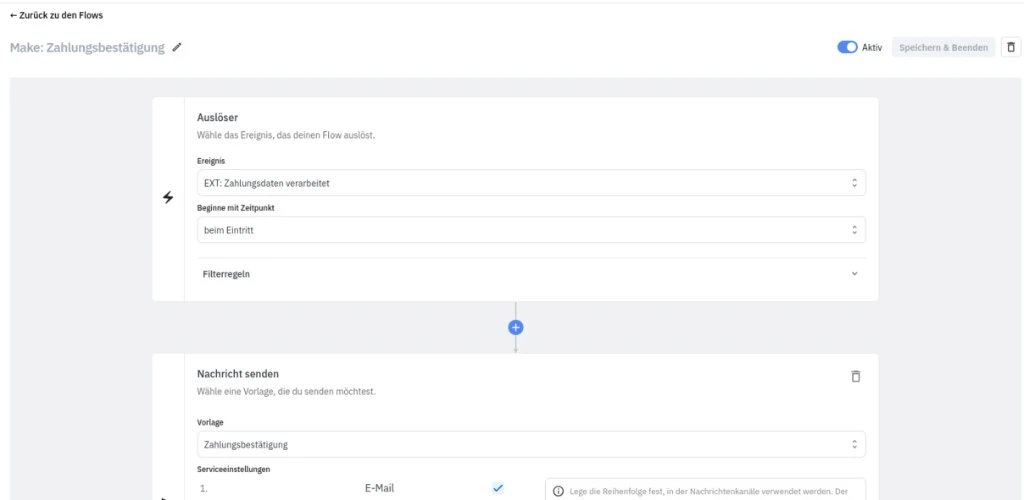
Step 2 — Send the trigger from Make.com
1
Create or open a scenario
Create a new scenario in Make.com or open the one that should trigger the DialogShift flow.
2
Add the DialogShift module
Click +, search for DialogShift and select the app.
3
Pick the action
Pick the action Start DS Flow.
4
Pick the flow trigger
Under DS FlowTrigger you will see all triggers you created in the flow editor — including
Make: payment data processed.5
Provide the booking ID
In the field Booking ID of guest enter the full booking ID. The flow will then start exclusively for the journeys that belong to this booking.In our example the booking data comes from the payment provider’s webhook — we can reference the booking number from there with a single click. With a different data source you can of course populate the booking number in any other way.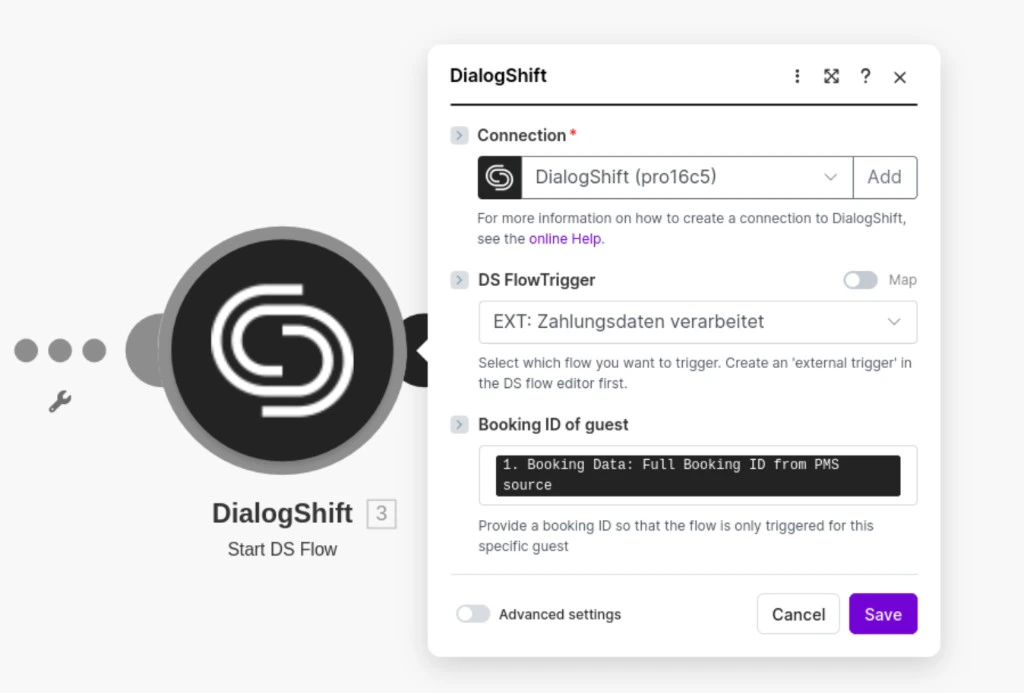
6
Save
Save the module — and you are done. As soon as the module is executed inside the Make scenario, the Journey flow will run.
Advanced: Start a flow without a booking ID
In specific situations — e.g. a promotional message to all currently checked-in guests — you may want to start the flow for many bookings at once. Without a booking ID, the module fails by default (visible in the Make scenario editor). You can instead start the flow for all currently checked-in guests:1
Leave the booking ID empty
Leave the Booking ID of guest field blank.
2
Open Advanced settings
Expand the Advanced settings section in the module configuration.
3
Enable Trigger for all checked-in guests
Activate the option Trigger for all checked-in guests.
Because of delays in the Make scheduler, the filter cannot always be perfectly accurate: the check-in status is determined based on the moment the action runs.
Troubleshooting
The flow does not start
The flow does not start
Checklist:
- Is the flow activated in Journey Messaging?
- Is the API key in the JM settings still valid?
- Is the booking ID transmitted correctly from Make.com? (Visible in the Make scenario editor.)
- Does the selected DS FlowTrigger match the external flow trigger in your DialogShift flow?
Error: booking ID is missing
Error: booking ID is missing
Without a booking ID, the flow does not run by default. Either fill in the booking ID or deliberately enable Trigger for all checked-in guests in the Advanced settings — see the section above.