

- Outgoing: A Journey Messaging flow starts a scenario in Make.com — optionally with booking and/or primary guest data.
- Incoming: A Make.com scenario starts a Journey Messaging flow — optionally filtered by a specific booking ID.
Terminology: What DialogShift calls a “flow” is called a “scenario” on Make.com. Because the two systems’ capabilities partly overlap, there is often more than one way to implement a use case.
Prerequisites
DialogShift Journey Messaging
A DialogShift account with Journey Messaging fully configured and activated
Make.com account
An account at Make.com
Step 1 — Add the Make.com app to your organization
The DialogShift app needs to be added to your Make.com organization once. Because the app is currently in beta, it is not yet publicly listed in the Make app store — we will send you a personal installation link on request.Request the installation link
Drop us a line at support@dialogshift.com and we’ll send you the installation link.
Once the app is available in the official Make app store, a simple search inside Make will be enough and the installation link will no longer be needed.
Step 2 — Create an API key in DialogShift
1
Navigate to Journey Messaging settings
In the DialogShift app, open Settings >> Journey Messaging. Right below the GDPR settings you will find the section Make.com Integration.
2
Register a new key
Click Register new key. In the dialog, select Make.com as the service (if it is not already preselected) and confirm with Generate new key.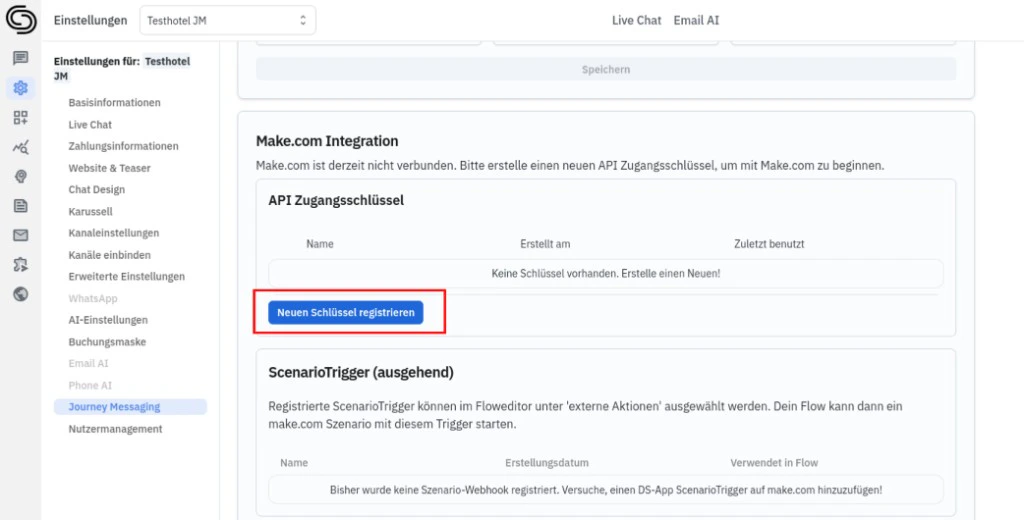
3
Store the key safely
Step 3 — Create a connection inside Make.com
No matter which direction you want to use the integration in — the first time you use the DialogShift app inside Make.com you must create a connection to DialogShift. In all DialogShift modules you will find the button Create a Connection in the setup popup:1
Click Create a Connection
In the DialogShift module, click Create a Connection.
2
Name the connection and paste the API key
Give the connection a name (e.g.
DialogShift) and paste the API key you just generated into the API Key field.3
Save
Hit Save — DialogShift is now stored as a connection in Make.com. You can reuse this connection across all your future scenarios.
What’s next?
Outgoing trigger
A Journey flow starts a Make.com scenario — for example to push booking data into an external spreadsheet.
Incoming trigger
A Make.com scenario starts a Journey flow — for example when a payment provider has processed a payment.
Troubleshooting
Lost or compromised API key
Lost or compromised API key
In the Journey Messaging settings under Make.com Integration simply generate a new key and store it in Make.com. You can disable the old key with the delete button.
Make reports a rate limit or exhausted quota
Make reports a rate limit or exhausted quota
Make.com accounts have their own rate limits and quotas — free accounts in particular hit those limits quickly. The limits are set by Make.com directly and may need to be increased through your Make plan.
Events arrive only after several minutes
Events arrive only after several minutes
Make.com runs its own scheduler. Latency is usually in the range of a few seconds; under high throughput Make may intentionally delay execution to protect its platform.
Why is the Make.com app in English only?
Why is the Make.com app in English only?
Make.com is primarily an English-language platform. There is currently no localization mechanism for custom apps — a German version would only exist in German.