> ## Documentation Index
> Fetch the complete documentation index at: https://docs.dialogshift.com/llms.txt
> Use this file to discover all available pages before exploring further.
# Make.com: Outgoing trigger
> A Journey Messaging flow starts a scenario on Make.com and optionally hands over booking and primary-guest data
With the outgoing trigger, a DialogShift Journey flow starts a scenario in Make.com. From that point on the Make scenario can do whatever you want — write data to a spreadsheet, call an external service, notify a Slack channel, and much more.
This guide assumes that you have [already set up the Make.com integration](/en/journey-messaging/make-com-setup) and that the connection between Make.com and DialogShift is in place.
## Example scenario
In this guide we will build the following use case:
> **3 days after departure** of a guest, their booking number should be sent to Make.com — for example to insert it into a spreadsheet.
## Step 1 — Create the scenario in Make.com
Create a new scenario in Make.com or open an existing one.
Click **+** in the scenario. Search for **DialogShift** in the popup and select the app.
Choose the trigger action **Watch external flow action**.
In the popup you can pick an existing webhook or create a new one with **Create a webhook**. We will create a new one.
If the connection to DialogShift does not yet exist, you can create it right here. Find the instructions in [Set up the Make.com integration](/en/journey-messaging/make-com-setup#step-3-—-create-a-connection-inside-make-com).
Give the webhook and trigger a name — in our example `3 days after departure`. We recommend identical names to begin with. If you prefer, you can pick a different display name in Make.com (**Webhook Name**) than the one shown in DialogShift (**Trigger Name**).
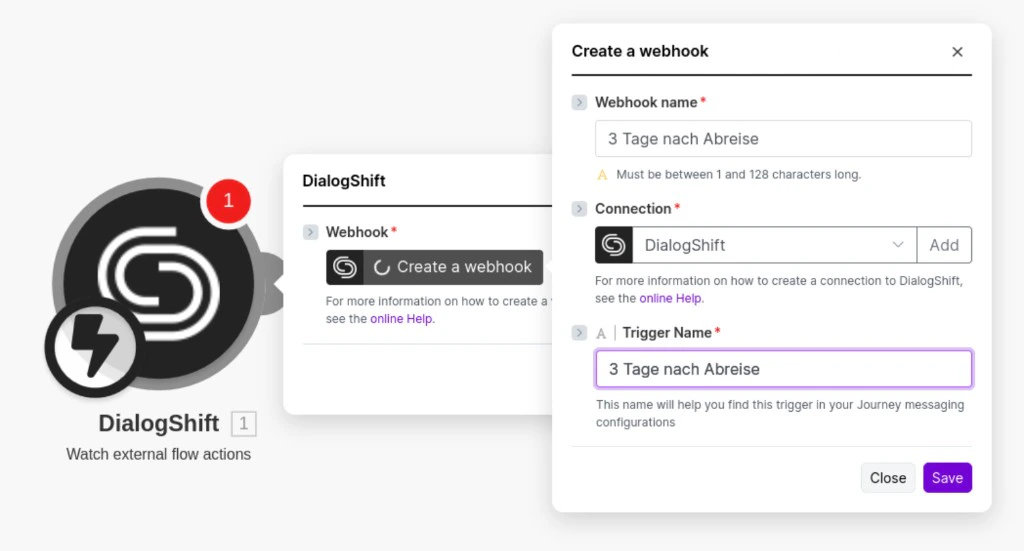 Click **Save** — the webhook is wired up automatically. From now on DialogShift flows can start this scenario.
## Step 2 — Connect the flow inside Journey Messaging
Back in DialogShift you will find the webhook you just created in the Journey Messaging settings under **ScenarioTrigger** — the `3 days after departure` trigger.
Your flow needs a trigger. For our example we use the **Departure** event with a **3 day** delay.
Add a new action and pick **External action (Make.com)**.
For **Trigger endpoint** choose the ScenarioTrigger you just created — in our example `3 days after departure`.
Choose which data to send to Make.com:
* **Booking data** only
* **Primary guest data** only
* **Both**
Available fields can be referenced as structured data in Make.com; missing fields stay empty.
Save the flow and don't forget to **activate** it. From now on the Make scenario will start for every guest 3 days after their departure.
The finished flow looks like this:
Click **Save** — the webhook is wired up automatically. From now on DialogShift flows can start this scenario.
## Step 2 — Connect the flow inside Journey Messaging
Back in DialogShift you will find the webhook you just created in the Journey Messaging settings under **ScenarioTrigger** — the `3 days after departure` trigger.
Your flow needs a trigger. For our example we use the **Departure** event with a **3 day** delay.
Add a new action and pick **External action (Make.com)**.
For **Trigger endpoint** choose the ScenarioTrigger you just created — in our example `3 days after departure`.
Choose which data to send to Make.com:
* **Booking data** only
* **Primary guest data** only
* **Both**
Available fields can be referenced as structured data in Make.com; missing fields stay empty.
Save the flow and don't forget to **activate** it. From now on the Make scenario will start for every guest 3 days after their departure.
The finished flow looks like this:
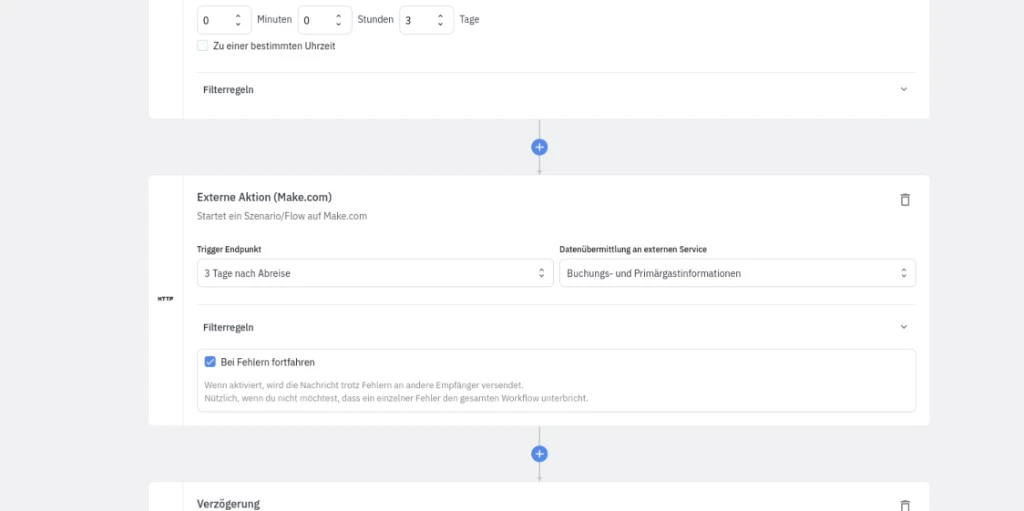 As soon as the external action is executed, DialogShift sends the `3 days after departure` event together with the configured data to Make.com — and the scenario over there starts running.
## Troubleshooting
Depending on how you configure the **External action (Make.com)** in the flow:
* **Booking data**
* **Primary guest data**
* or **both**
Available fields are accessible as structured data, missing fields stay empty. After the first trigger run you can inspect every transmitted field directly in the Make scenario editor.
Checklist:
* Is the flow **activated** in Journey Messaging?
* Is the **API key** in the JM settings still valid?
* Does the selected **trigger endpoint** match the webhook in your Make scenario?
* Is the Make scenario itself switched to active inside Make.com?
As soon as the external action is executed, DialogShift sends the `3 days after departure` event together with the configured data to Make.com — and the scenario over there starts running.
## Troubleshooting
Depending on how you configure the **External action (Make.com)** in the flow:
* **Booking data**
* **Primary guest data**
* or **both**
Available fields are accessible as structured data, missing fields stay empty. After the first trigger run you can inspect every transmitted field directly in the Make scenario editor.
Checklist:
* Is the flow **activated** in Journey Messaging?
* Is the **API key** in the JM settings still valid?
* Does the selected **trigger endpoint** match the webhook in your Make scenario?
* Is the Make scenario itself switched to active inside Make.com?